How to remove the Background of any Image using Paint 3D in Windows 10/11
Have you ever tried to remove a background from a picture and failed? Don’t worry, it happens to many people. Maybe you would like to keep the main image and remove everything in the background. Or maybe you are making a cool edit, working on a school project, or creating memes with friends. But the background remains and looks bad.
Here’s the good news, you don’t need expensive software! Paint 3D is FREE on your Windows computer and works amazingly. We’ll guide you on how to remove backgrounds in simple steps using the Magic Select tool. Follow this tutorial to learn how to remove the background in Paint 3D in a few minutes.
Step-by-Step Guide: How to Remove Background in Paint 3D
Follow these simple steps, and you’ll remove any background like a pro!
1. Import the Image
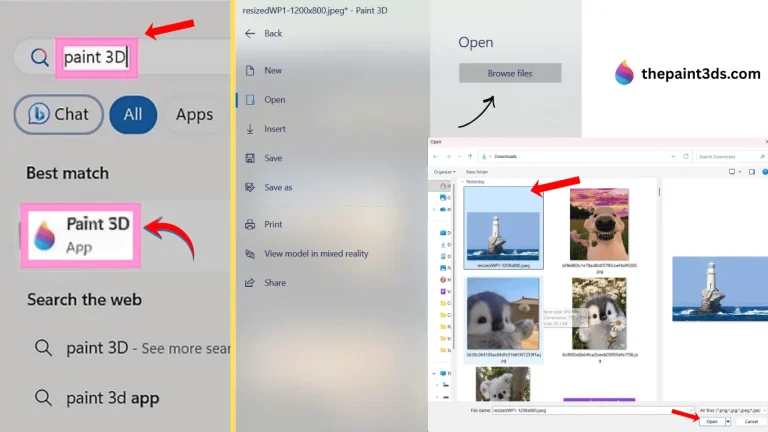
First, open Paint 3D on your computer. Type “Paint 3D” in the Windows search bar and click the app. When it opens, you’ll see a Welcome screen. Click “Open” and then “Browse files.” Now, find the picture you want to edit from your computer folders. Click on it and press “Open” to load it into Paint 3D.
2. Select the Object
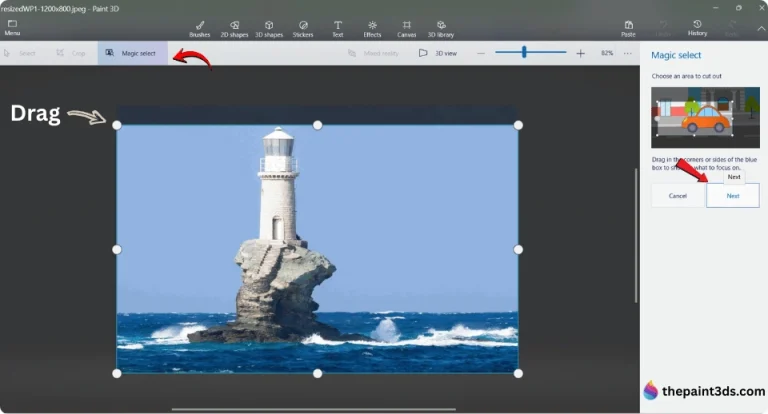
Click the “Magic Select” tool from the top menu bar. This is a smart tool that helps you cut out objects quickly and easily. Once you click it, a blue selection box will appear around your image with white circles at the corners and sides. Drag the corners or sides of this box to fit around the object you want to keep. Make sure the box covers your main subject properly. Once you have done that, click “Next.”
3. Refine the Selection (Add & Remove)
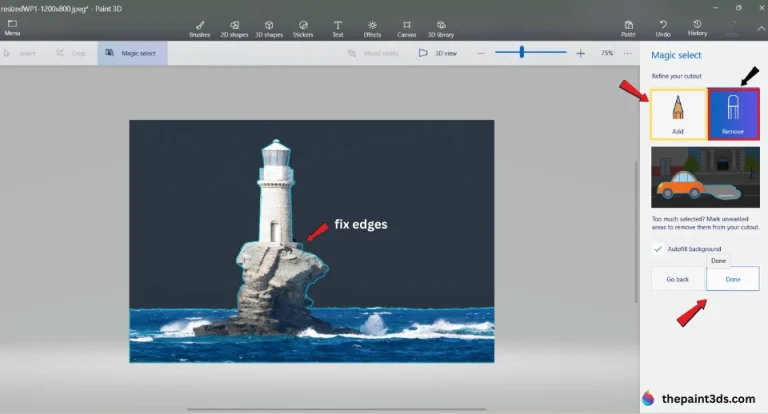
Now, Paint 3D will automatically select your object, but it might not be perfect. On the right side, you’ll see “Add” and “Remove” tools. Use “Add” (pencil icon) to include missing parts of your object. Use “Remove” (trash icon) to erase unwanted background areas. Just click and paint over spots that need fixing. Once everything looks good, click “Done”!
4. Move your Selecting Object to the Side and delete the background
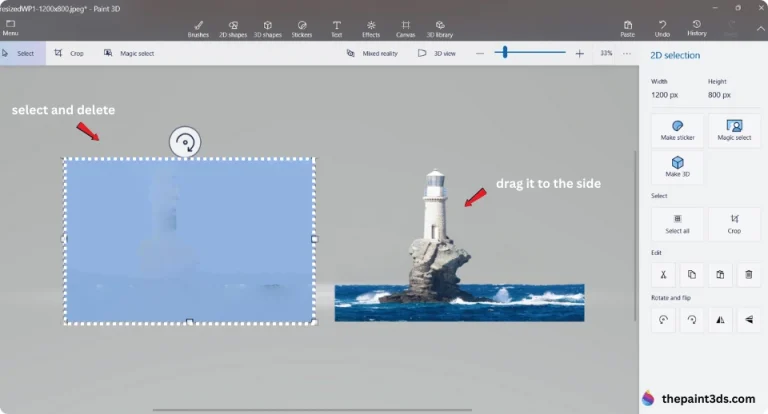
You can now select the object, person, or animal you ‘cut out’ and drag it to the side. This makes it easier to delete the background without touching your main subject.
Now select the background you want to remove by going to “Select” in the top left-hand corner. Drag and click over the entire background image, then hit “Delete” on your keyboard or click the delete option in the settings panel on the right. Now the background should be gone, and you can drag the main image back into the center.
5. Enable Transparent Canvas
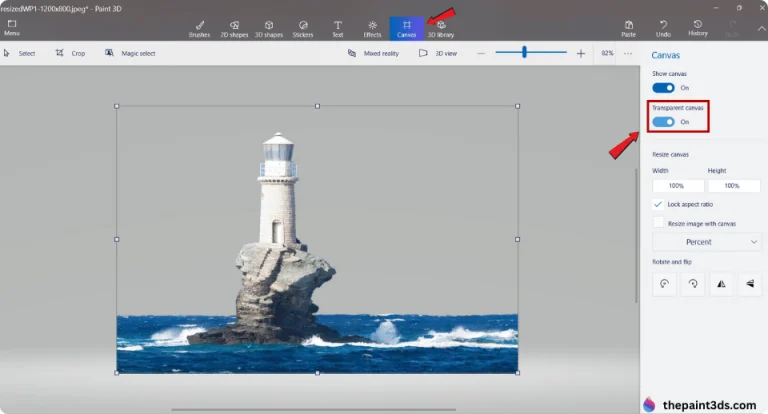
Now it’s time to make your background transparent! Look at the top menu bar and click on “Canvas.” A settings panel will open on the right side of your screen. Find the option that says “Transparent canvas” and toggle the switch to “On” (it will turn blue).
Once you do this, you’ll see a gray and white checkered pattern appear behind your image. That checkered pattern means your background is now transparent and ready to save!
6. Save Your Image as Transparent PNG
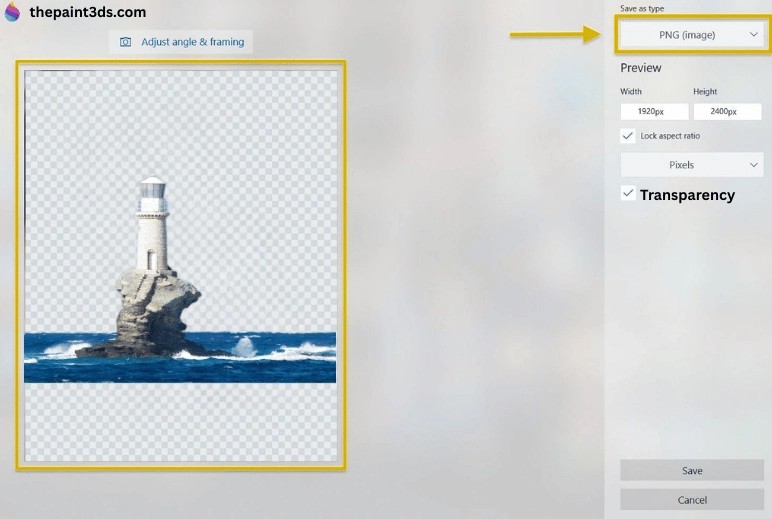
Finally, it’s time to save your work. Go to Menu > Save as > Image, choose “PNG” as the file type, and make sure “Transparency” is checked. Click “Save,” and you’re done!
7. Use Your Transparent Image Anywhere
Your transparent image is now ready to use! You can add it to slides, websites, presentations, or graphic design tools with a clean, professional, transparent background!
Tips for Better Background Removal Results
Want your background removal to look perfect? Here are some easy tips!
PNG vs JPEG—Which Format to Use?
Choosing the right format is super important for transparent backgrounds!
PNG Format
PNG supports transparent backgrounds perfectly. When you remove a background in Paint 3D, always save as PNG, or your transparency will disappear! PNG keeps all image details and quality sharp, but the files are bigger in size.
When to use PNG:
JPEG Format
JPEG does NOT support transparency at all. If you save your transparent image as a JPEG, the clear background turns white automatically. JPEG makes smaller files, which is good for photos you want to share quickly online.
When to use JPEG:
Remember: Transparency always needs PNG format.
Free Alternatives to Paint 3D for Background Removal
Looking for other free tools to remove backgrounds? Here are some great alternatives that work just as well or even faster!
Windows 11 Paint (One-Click Method)
Windows 11 Paint now has a “Remove Background” button that works with just one click. Open your image in Paint, click the button, and done! It’s the fastest way if you have Windows 11.
Free AI Background Remover Tools
AI tools work super fast and automatically. Popular free options include:
- Remove.bg—most popular, very accurate
- PhotoRoom—Great for product photos
- Pixelcut—Easy to use
- Canva – Has background remover built in
Just upload your image, wait a few seconds, and download. If you prefer browser-based tools that work like Paint 3D, check out our guide on Paint 3D online alternatives that let you create and edit without installing software.
When to Use Each Tool
Use Paint 3D: When you want more control and manual editing to fix small mistakes.
Use AI Tools: When you need super-fast results or have many images to edit at once.
AI tools work great for clean, simple images, but Paint 3D gives you more power to fix things yourself!