How to Use Paint 3D like A Pro: Complete Beginner’s Guide [2026]
Are you struggling with complicated designing software that has confusing menus and complex tools? You’re not alone. Most beginners give up on creating digital art because professional programs feel too technical and hard to learn. Paint 3D changes everything with its simple, beginner-friendly interface that anyone can master easily.
This complete guide teaches you everything about how to use Paint 3D like a pro, step by step. Whether you want to draw illustrations, remove photo backgrounds, build 3D models, or edit images, you’ll learn exactly how to do it, with no previous design experience needed.
Follow our clear instructions and start creating impressive digital artwork today without frustration or confusion.
What is Paint 3D?
Paint 3D is a free graphic design application from Microsoft that helps you create both 2D drawings and three-dimensional models. This creative 3D paint software works as a digital workspace where you design, paint, and build artwork projects without professional skills.
The Microsoft Paint 3D application includes powerful features like Magic Select, background removal tools, realistic brushes, text editing, and special effects. For detailed information about features and how to download Paint 3D, check our complete Paint 3D overview. Now, let’s dive into using each tool step by step.
Getting Started with Paint 3D
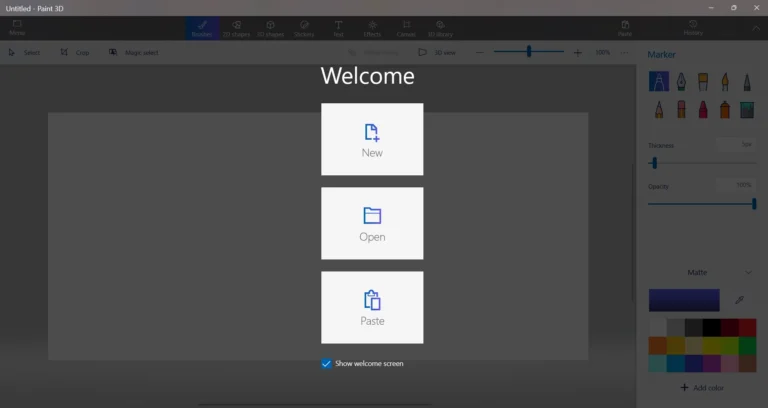
When you first open this paint app, it shows the Welcome page, where you see 3 options: New, Open, and Paste. When you want to start a fresh project, use the New option. It opens a blank canvas where you can draw, paint, or design something from scratch. And Paint 3D has some other Alternatives you can test.
When you want to continue working on an old file, use the Open option. You pick an image or project saved on your computer, and Paint will open it. Great for editing an existing picture.
Use the Paste option when you have copied something and want to put it on the canvas. For example, if you copy an image, text, or a screenshot, clicking Paste will place it into Paint. It inserts whatever is currently copied to your clipboard.
Understanding the Paint 3D Interface
When you open Paint 3D, the interface is simple and beginner-friendly, showing all the main tools and options in one place.
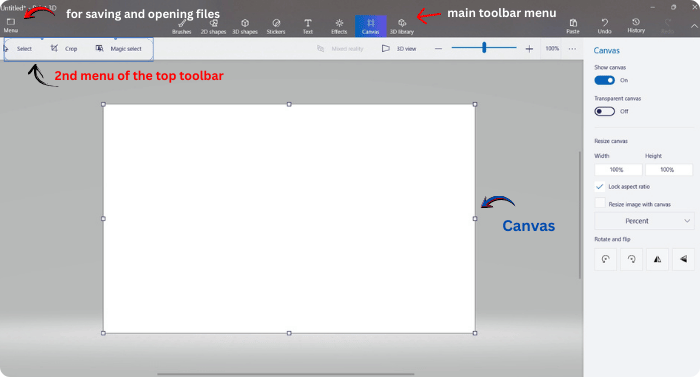
The toolbar appears on the top menu with clear icons for brushes, 2D shapes, 3D shapes, Stickers, Text, Effects, Canvas, and 3D library. Menu options sit at the top left for saving and opening files. The canvas in the center is your digital drawing surface where all creative work happens.
In Paint 3D, when you click any tool from the top toolbar menu (like Stickers, Text, 3D Shapes, 3D Library), the right side of the screen changes and shows the tools or options related to what you selected.
On the second menu of the top toolbar, Paint 3D gives you important tools like Select, Crop, and Magic Select. You can easily edit your project by using tools like Crop to remove extra parts, Select to move objects, and Magic Select to automatically detect the main object in your image.
You can adjust the canvas size anytime by clicking the canvas icon and changing the width and height settings using simple sliders. The interface is designed so that all tools stay easy to find and use. Take a few minutes exploring where everything is located before starting your first project.
Now that you understand the interface layout, let’s explore each creative tool in detail and learn how to use them effectively.
How to Use Brushes in Paint 3D
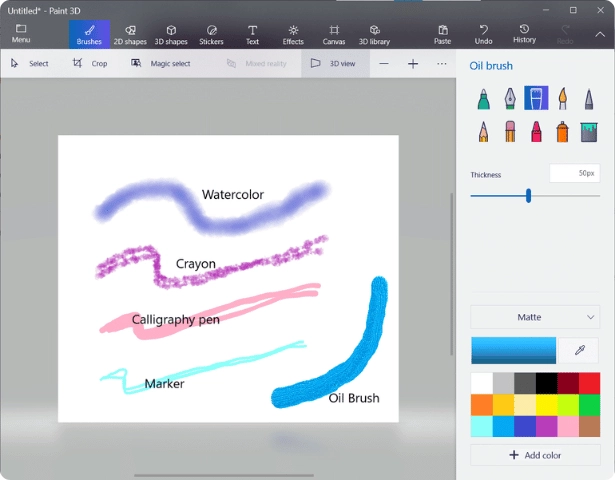
Paint 3D offers a variety of brushes to make your artwork look realistic and professional. Select the “Brushes” tool from the top menu toolbar to start drawing on your canvas. Drag from many realistic brush types, including marker, calligraphy pen, pencil, watercolor, oil brush, crayon, pixel pen, spray can, eraser, and fill options.
Each brush creates unique effects and textures on your 3d digital artwork. You can adjust the Thickness and Opacity sliders on the right side to control how your strokes appear. With Choose a Material, you can pick the finish of your brush strokes, such as matte or glossy, to make your colors look smoother or shinier.
Click and drag on the canvas to draw freehand with smooth, natural movements. The Fill tool helps you color large areas quickly by tapping inside any closed shape. Use the eraser tool to remove mistakes without starting your entire project over.
You can also add 2D shapes like circles, squares, triangles, and lines by selecting them, dragging them onto the canvas, then resizing or rotating as needed for your design.
How to use 2D Shapes in Paint 3D
The 2D Shapes tool in Paint 3D lets you add simple shapes to your project easily. When you choose the 2D Shapes icon on the top toolbar, the right side panel opens and shows many options like circles, squares, triangles, arrows, stars, hearts, and speech bubbles. You also get the Line and Curve tool to draw straight or curved lines with smooth control.

To use any shape, just select it and drag it onto the canvas. You can resize, rotate, or change its color anytime. This panel is perfect for creating clean designs, diagrams, labels, or simple drawings without freehand work.
How to use 3D Shapes in Paint 3D
Select the 3D Shapes tool to add three-dimensional objects that pop out from your canvas. You can choose from basic shapes like cubes, spheres, cylinders, cones, 3D doodles, or ready-made 3D objects and models.
At the top of the 3D Shapes panel, you’ll see the “Open 3D Library” button with a cube icon. Click it to browse thousands of free 3D models, including people, animals, furniture, and objects. Select any model to instantly add it to your canvas.
Click and drag on the canvas to place any shape where you want it. Use the rotation handles to turn and view objects from different angles in 3D space.

The 3D Doodle tool lets you draw freely with curved lines that float in space, creating unique custom shapes. Open the 3D Library to browse hundreds of ready-made models, including animals, people, plants, vehicles, and futuristic structures.
Select any model to add it, then adjust its size, color, rotation, and position using the corner handles and control points.
How to use Text in Paint 3D
Use the Text tool to add words, labels, or captions to your design. Click the Text icon from the top menu, then type your message in the text box that appears. Choose between 2D text, which stays flat, or 3D text, which pops out with depth and dimension using the toggle switch.
You can select font styles from the dropdown menu and apply bold, italic, or underline to make your text stand out. Change the text color using the color palette and adjust the size by dragging the corner handles.
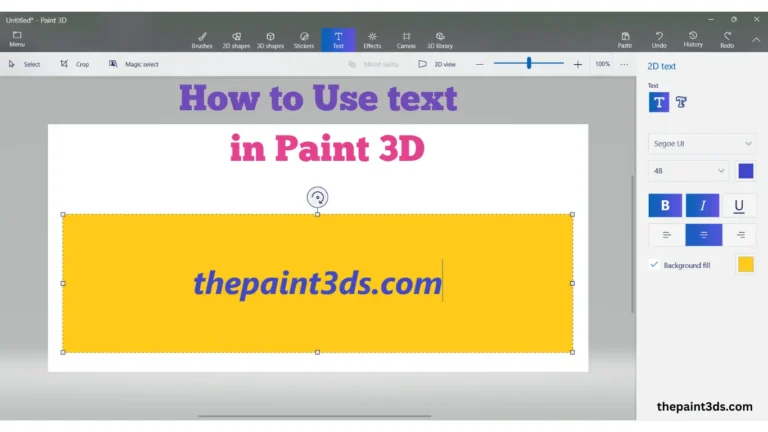
For a better layout, align your text to the left, center, or right. For 3D text, rotate it in any direction to create dynamic angles, and use the background fill option to add a colored rectangle behind your words for extra visibility. These options help make your text clear, creative, and eye-catching on your canvas.
How to use Stickers, Textures, and Custom Stickers
Select the Stickers tool from the top toolbar. On the right panel, you’ll see three sections: Stickers, Textures, and Custom Stickers.
Use Stickers to add pre-made decorative images to your canvas or directly onto 3D objects. They automatically wrap around shapes for a natural look.
Use Textures to give 3D objects realistic surfaces like wood, metal, or fabric. Select a texture, then click on the object to apply it instantly.
For Custom Stickers, upload your own image or photo and turn it into a sticker you can place on any surface. Resize, rotate, and adjust as needed to personalize your project easily.

How to Apply Effects & Lighting in Paint 3D
Select any object on your canvas and click the Effects tool from the top toolbar. The right panel will show different filters and artistic styles that you can apply with one click.
These effects can change colors, add soft blur, or give your project a unique look, making both 2D and 3D designs more visually appealing.
To adjust lighting, click the light bulb icon. Drag the light around your 3D scene to control where shadows and highlights appear.
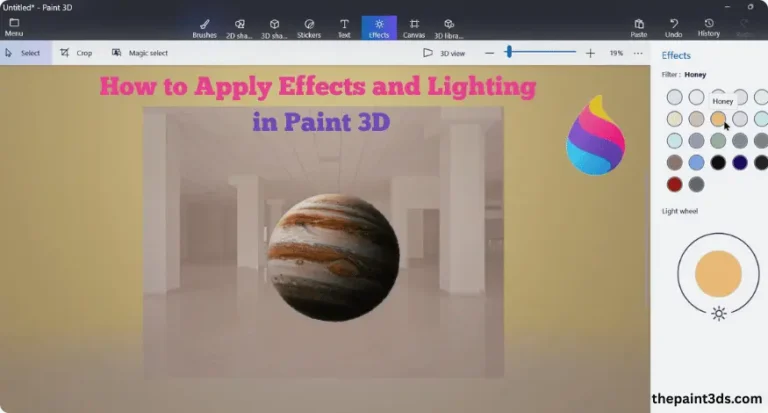
Use the sliders to change the light’s intensity and color. Proper lighting adds depth and realism, helping your 3D objects look professional and natural.
Understanding Workspace & 3D View
The Workspace is where all your creative work happens. Click anywhere on the canvas to add 2D or 3D shapes, text, stickers, or use brushes.
You can resize the canvas using the Canvas tool from the top toolbar to make more space for your design. The workspace is clean and organized, so you can focus on designing without distractions.
To see your project from different angles, use 3D View. In 3D View mode, Paint 3D allows you to rotate your entire scene to see your project from every angle.
This helps you create detailed models and ensures your 3D objects look accurate from all perspectives. You can also zoom, pan, and adjust your view to get the perfect angle for editing or showcasing your creations.
How to use Magic Select in Paint 3D
On the second top toolbar, choose the Magic Select tool to remove backgrounds automatically. Draw a rough rectangle around the object you want to keep. Paint 3D will detect the edges and separate your object from the background.
Use the Add and Remove buttons to refine the selection if some parts were missed or extra areas were included. Once satisfied, select Remove to delete the background completely, creating a transparent cutout.
This feature is perfect for presentations, social media graphics, or web designs. You can place the cut-out on new backgrounds or save it as a PNG with transparency. It saves time compared to manual cutting and works best with clear, high-contrast objects.

How to use Canvas in Paint 3D
The canvas is your digital workspace where all your designs happen. Click the Canvas icon to access customization settings. Toggle Show canvas on or off, or select Transparent canvas to remove the background for stickers, graphics, or images. You can choose how to resize your canvas by percent or pixel using the width and height sliders.
Turn on Gridlines to align objects precisely. You can also rotate and flip the canvas or objects for creative layouts. The canvas can be resized anytime without affecting existing work, giving full flexibility during your project.
How to use the 3D Library in Paint 3D
Click the 3D Library icon to explore a large collection of ready-made 3D models. The library is organized into categories like animals, people, plants, objects, and architectural structures, making it easy to find what you need.
You can also use the search bar to quickly locate specific models. Click any thumbnail to add it instantly to your canvas.
Once a model is on your project, you can resize it by dragging the corner handles and rotate it with the circular arrows to face any direction.
Change its colors using the color palette with thousands of shades. Combine multiple models to build detailed scenes, illustrations, or complex compositions without starting from scratch.

Saving and Exporting Your Work
Click the menu icon showing three horizontal lines at the top left corner of the screen. Select “Save” to update your existing file or “Save as” to create a new copy with a different name.
Choose between 2D image formats like PNG, JPG, or BMP for flat artwork and photos. Select 3D formats like FBX, 3MF, or GLB if you want to preserve the three-dimensional data for use in other software or 3D printing.
PNG format works best for images with transparent backgrounds that blend into websites and presentations. You can also export your creative work specifically for 3D printing by selecting the appropriate 3D printer format.
All your projects are saved with full editing capability preserved, so you can return and modify them later without starting over from the beginning each time.
Expert Tips for Professional Results
Start with simple projects to understand how each tool works before working on complex designs. Practice rotating 3D shapes, using different brushes, and experimenting on blank canvases.
Although Paint 3D doesn’t have traditional layers, you can organize your work by grouping related objects for easier editing later.
Mix 2D drawings with 3D objects, then add text, stickers, and effects for professional-looking results. Frequently save your project to avoid losing progress.
Use PNG format for transparent graphics, and add lighting to 3D objects to create realistic shadows and depth. Take advantage of unlimited undo to experiment freely without worry.
Common Problems and Solutions
Even though the MS Paint 3D application is beginner-friendly, you might face some issues while using it. Here are the most common problems users encounter and simple solutions to fix them quickly.
Magic Select Not Detecting Edges Accurately
If Magic Select does not detect object edges properly, use the “Add” and “Remove” buttons to refine your selection boundaries manually. Click “Add” to include missed areas and “Remove” to exclude unwanted parts.
The tool works best with high-contrast images where objects have clear edges against different colored backgrounds. Try using photos with good lighting and sharp focus for better automatic detection results.
3D Objects Look Flat and Unrealistic
When your 3D models appear flat, add lighting sources to create realistic shadows and highlights. Click the light bulb icon and position the light at an angle rather than directly above your objects.
Adjust light intensity and color using the sliders until your models look dimensional. Proper lighting makes the biggest difference in how professional your 3D creations appear to viewers.
Canvas Size Too Small for Project
If your workspace feels cramped, click the canvas icon and increase the width and height dimensions using the sliders. The canvas resizes instantly without affecting any objects you’ve already placed on it.
You can make the canvas bigger or smaller anytime during your project.
This flexibility helps you adjust your workspace as your design grows and becomes more complex than originally planned.
Colors Look Different After Saving
When saved images show different colors than you see on screen, switch from JPG to PNG format. JPG compression slightly changes colors and removes transparency to make smaller files. PNG format preserves exact colors and transparency without any quality loss.
Always use PNG for graphics that need precise colors or transparent backgrounds for websites and presentations.
Cannot Find a Specific Tool
If you cannot locate a tool you need, check the left toolbar, where all the main tools appear as clear icons. Click any icon to open a detailed panel on the right side with more options and settings.
The menu at the top provides save, open, and export functions. Hover your mouse over icons to see tooltips that explain what each tool does before clicking it.
Program Runs Slowly or Freezes
When the paint app runs slowly, close other programs to free up computer memory and processing power.
Working with very complex 3D models requires more system resources. Save your project and restart the application if it becomes unresponsive.
Reduce the number of objects on your canvas or lower the canvas resolution if performance problems continue affecting your work.
FAQs
Conclusion
Using Paint 3D is easier than you think. This complete guide showed you step-by-step how to draw, create 3D models, remove backgrounds, and use every tool effectively. Now it’s your turn to practice. Experiment with different brushes, explore the 3D library, and try combining 2D and 3D elements in your projects. The more you practice, the faster you’ll master each feature. Download the latest version for Windows and start creating your own amazing artwork today.